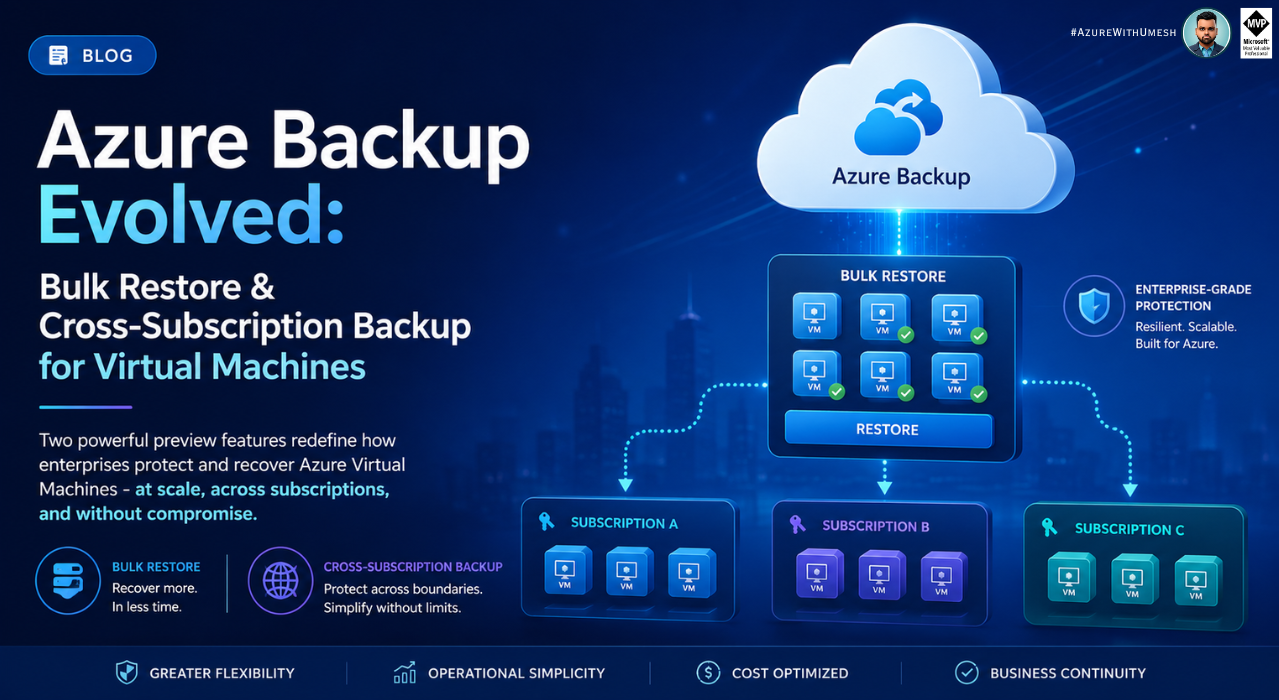
As cloud environments grow more complex and compliance demands intensify, Azure Backup continues to evolve with enterprise-grade capabilities. Two preview features – Bulk Restore for Azure VMs and Cross-Subscription Backup – address real operational pain points: slow, one-at-a-time recoveries and siloed backup management across subscriptions.
Part 1 – Bulk Restore for Azure Virtual Machines
What Is Bulk Restore?
Traditionally, restoring Azure Virtual Machines from backup has meant restoring each VM one at a time – a manual, time-consuming process that becomes a bottleneck precisely when speed matters most: during ransomware recovery, datacenter migration, or large-scale environment refresh scenarios.
Bulk Restore for Azure Virtual Machines using Azure Backup addresses this directly. As documented in the official Azure Backup What’s New page, this feature allows operators to trigger restore operations for multiple Azure VMs simultaneously from the Azure portal, dramatically reducing recovery time at scale.
Preview Status
Bulk Restore for Azure VMs is currently in public preview. Preview features are available for early testing but may not yet have full SLA coverage. Check the Azure Backup What’s New page for the latest regional availability.
Why It Matters
Consider a production environment with 50 VMs compromised in a ransomware attack, or a staging environment refresh requiring a full VM fleet restore before a release cycle. Prior to this feature, each VM restore would need to be triggered, tracked, and validated individually. Bulk Restore compresses that process significantly.

How Bulk Restore Works – Step by Step
According to the official Azure Backup documentation on restoring VMs in bulk (preview), the restore process flows through the following stages:
1. Navigate to Recovery Services Vault
Sign in to the Azure portal, then go to Resiliency and select Recover. You can also access this workflow directly from your Recovery Services vault.
2. Select Datasource Type
On the Recover pane, set Datasource type to Azure Virtual Machines. This filters the list to only your protected VM backup items.
3. Select Multiple Protected VMs
Using the bulk selection option, choose multiple VM backup items from the list. Each VM must have an available recovery point. You can select VMs across different resource groups, provided they share the same vault.
4. Configure Restore Settings
For each VM or as a batch configuration, choose your restore type: Create a new VM, Restore Disks, or Replace Existing. Specify target resource group, virtual network, staging location, and subscription if using Cross Subscription Restore.
5. Trigger and Monitor
Submit the bulk restore job. Azure Backup creates individual restore jobs for each VM, which you can track from Resiliency → Monitoring + Reporting → Jobs. Notifications are surfaced via Azure Monitor alerts.
Restore Options Available in Bulk
The bulk restore workflow supports all standard Azure VM restore options as documented in the restore options reference:

Storage Account Considerations for Bulk Restore
When running bulk restore operations, storage account behavior differs by restore type:
- For Create VM restores from vault-standard recovery points, VHD files are copied when restoring managed disks under 4 TB or VMs with fewer than 16 disks. These are then moved to managed storage. To avoid extra charges, delete the VHD files from the staging storage account after restore.
- For Restore Disk operations, a template is generated and VHD files are created in similar circumstances as above.
- For Replace Disk from a vault-standard recovery point under 4 TB or a VM with fewer than 16 disks, a VHD is created in the specified storage account. After replacement, the original disk remains in the resource group.
- The storage account must be in the same region as the vault. Blob Storage accounts and premium storage accounts with network rules are not supported for restore staging.
- Zone-redundant storage (ZRS) is supported for staging accounts.
Best Practice
To receive alerts when any restore job in a bulk operation fails, configure Azure Monitor alerts for Azure Backup. This helps you catch partial failures in bulk restore batches and take corrective action quickly.
Post-Restore Checklist for Bulk Scenarios
After a bulk restore completes, the official documentation highlights several important follow-up actions:
- Extensions: Extensions present at backup time are installed on restored VMs but not automatically enabled. If any are needed, reinstall them manually.
- RBAC Roles: When creating new VMs from a restore, RBAC role assignments scoped to the original VMs do not carry over. Reassign roles to all restored VMs as needed.
- IP Addresses: A restored VM has a dynamic IP address even if the original had a static one, to avoid conflicts. Reassign static IPs via PowerShell if required.
- Availability Sets: Restored VMs are not placed in availability sets automatically. If required, create VMs from restored disks using the generated template or PowerShell and specify the availability set.
- Backup Re-enablement: If VMs are restored to a different resource group or with a different name, backup must be reconfigured. VMs restored to the same resource group with the same name continue being backed up automatically.
Part 2 – Cross-Subscription Backup for Azure VMs
What Is Cross-Subscription Backup?
Large enterprises commonly operate across multiple Azure subscriptions -separating production, staging, development, and compliance environments into distinct subscription boundaries. Historically, Azure Backup required the Recovery Services vault and the VM being protected to reside in the same subscription, creating siloed backup estates that were difficult to govern uniformly.
Cross-Subscription Backup (CSB) for Azure VMs breaks this constraint. As noted in the Azure Backup What’s New documentation, CSB allows you to back up data across different subscriptions within the same tenant or Microsoft Entra ID. This provides greater flexibility and centralized control, essential for enterprises managing multiple subscriptions with varying purposes and security policies.
Key Capabilities

How Cross-Subscription Backup Works
According to the official documentation for backing up Azure VMs in a Recovery Services vault and the restore guidance, the cross-subscription workflow operates as follows:
1. Create the Recovery Services Vault in Target Subscription
Create or designate a Recovery Services vault in your chosen “backup” subscription. From the Azure portal, navigate to Resiliency → + Vault → Recovery Services vault and configure the vault name, resource group, and region. The vault must be in the same region as the source VMs.
2. Configure Protection Across Subscriptions
From the vault, navigate to Resiliency → + Configure protection, set the datasource type to Azure Virtual Machines, and then browse and select VMs from a different subscription within the same tenant. Appropriate RBAC permissions on both the source and target subscriptions are required.
Assign a backup policy to the selected VMs. The default policy backs up the VM once a day with 30-day retention and a 2-day instant recovery snapshot. Custom policies with daily or weekly schedules and configurable retention can also be applied. For hourly backups, configure an Enhanced backup policy.
Select Enable backup to deploy the policy and install the backup extension on the VM agent. The initial backup runs per schedule, but can be triggered on-demand from Resiliency → Protected items → Backup Now.
When restoring, use the Subscription drop-down in the restore configuration to choose any subscription within the tenant where you have the required RBAC permissions. The restored VM or disks are provisioned directly into the target subscription.
Cross-Subscription Restore (CSR) – Detailed Behavior
The Cross Subscription Restore documentation clarifies several important behavioral aspects of the feature:
- CSR is enabled by default on Recovery Services vaults. You can modify this setting by navigating to Vault → Properties → Cross Subscription Restore.
- CSR can be disabled (reversibly) or permanently disabled (irreversibly) for compliance or security reasons. Once permanently disabled, CSR cannot be re-enabled.
- If a Recovery Services vault is moved to a different subscription while CSR is disabled or permanently disabled, restore to the original subscription will fail.
- CSR is supported for managed virtual machines only. It is not supported for unmanaged VMs or ADE-encrypted VMs.
- CSR is not supported from snapshot-tier recovery points – only vault-tier recovery points are eligible.
- CSR is fully compatible with Cross Region Restore (CRR) and Cross Zonal Restore (CZR).
- CSR is supported for Restore with Managed System Identities (MSI), enabling secure, credential-free access to staging resources.
Irreversible Action Warning
Permanently disabling Cross Subscription Restore on a vault is an irreversible operation. Before taking this action, ensure it aligns with your long-term security and compliance requirements. If you only need to temporarily restrict CSR, use the reversible disable option instead.
RBAC Requirements
Both Cross-Subscription Backup and Cross-Subscription Restore depend on Azure Role-Based Access Control (RBAC) being properly configured. According to the official documentation:
- The operator initiating the backup or restore must have the required Backup Operator or Backup Administrator roles on the Recovery Services vault.
- For restore operations involving managed identities, the system-assigned or user-assigned managed identity must have permissions on the target staging storage account and resource group. The VM Restore Operator role can be assigned for this purpose.
- For Cross Region Restores, the same Azure roles required in the primary region are required in the secondary region as well.
- All subscriptions involved (source VMs, vault, and restore target) must be within the same Microsoft Entra ID tenant.
Part 3 – Prerequisites and Setup Foundation
Setting Up the Recovery Services Vault
Both Bulk Restore and Cross-Subscription Backup build on top of a properly configured Recovery Services vault. The official preparation guide walks through the foundational steps:
A Recovery Services vault is the management entity that stores recovery points created over time, and provides the interface for all backup-related operations -including on-demand backups, restore jobs, and policy creation. Key configuration decisions at vault creation time include:
- Region alignment: The vault must be in the same region as the VMs it protects. If you have VMs across multiple regions, create a separate vault per region.
- Storage replication type: By default, vaults use Geo-Redundant Storage (GRS), recommended when the vault is your primary backup mechanism. Locally Redundant Storage (LRS) is a lower-cost alternative. Zone-Redundant Storage (ZRS) replicates data across availability zones for in-region resilience. Note: storage replication type cannot be modified after backup items have been added to the vault.
- Immutability: Azure Backup supports immutable vaults, ensuring that recovery points cannot be deleted before their policy-defined expiry. Immutability can be locked to become irreversible, supporting ransomware protection and compliance requirements.
Storage Redundancy – Which Should You Choose?

VM Agent Requirements
Azure Backup backs up Azure VMs by installing an extension on the Azure VM agent. According to the documentation:
- VMs created from Azure Marketplace images have the VM agent pre-installed and running.
- Custom VMs or VMs migrated from on-premises may require manual agent installation. For Windows, download and install the MSI and verify the
WaAppAgent.exeproduct version is 2.6.1198.718 or later. For Linux, install via RPM or DEB package from the distribution’s package repository. - Explicit outbound connectivity is not required to allow backup of Azure VMs.
Backup Job Phases – Understanding the Pipeline
The official documentation describes three distinct phases for each Azure VM backup job, important to understand especially when monitoring bulk operations:
1. Snapshot Phase
Azure Backup takes a snapshot of VM disks. This creates the recovery point used for Instant Restore, retainable for up to 30 days depending on policy type and snapshot retention settings.
2. Transfer Data to Vault Phase
Data is copied from the VM snapshot to the Recovery Services vault to create a long-term recovery point. This phase begins after the Snapshot phase completes and may take multiple days depending on disk size and churn rate. The progress bar in the portal tracks only this phase.
Azure Backup performs an integrity check to verify transferred data and confirm the recovery point is restorable. A backup is only considered restorable after Validate Backup succeeds. Completing Transfer Data to Vault alone does not confirm restorability.
Important: Validate Backup Is Required
Completion of the Transfer data to vault phase does not confirm a restorable recovery point. The backup is only considered restorable after the Validate backup phase succeeds. Use the Replace Existing restore option only when the Transfer Data to Vault subtask shows successfully completed in job details.
Bringing It Together – Enterprise Disaster Recovery Scenario
Consider a mid-sized financial services company with the following architecture:
- Subscription A (Production): 80 Azure VMs running workloads
- Subscription B (Backup/DR): Recovery Services vault with GRS storage redundancy
- Subscription C (Dev/Test): 20 Azure VMs for testing restored environments
With Cross-Subscription Backup enabled, all 80 production VMs in Subscription A are backed up into the centrally governed vault in Subscription B. In the event of a ransomware incident affecting Subscription A:
- The security team uses Bulk Restore to simultaneously trigger recovery of all 80 VMs from clean recovery points in the Subscription B vault.
- Using Cross-Subscription Restore, they target Subscription C as the restore destination, creating an isolated restored environment for validation before cutting over to production.
- Azure Monitor alerts notify the team of any individual VM restore failures within the bulk job, allowing targeted remediation.
- After validation, the restored VMs in Subscription C are promoted or the original VMs in Subscription A are cleaned up and re-registered for backup.
This scenario – which would have required hours of manual, sequential restore steps before these preview features – can now be orchestrated in a fraction of the time, with full audit trails and centralized governance.
Conclusion
Bulk Restore and Cross-Subscription Backup represent a meaningful maturation of Azure Backup’s capabilities for enterprise environments. Rather than treating backup and recovery as a per-VM, per-subscription concern, these features recognize the operational reality of how large organizations actually manage Azure infrastructure.
Both features remain in preview at the time of writing, meaning they are available for early adoption and testing but may see changes before general availability. Organizations evaluating these capabilities should review the Azure Backup What’s New page regularly for regional availability updates and GA announcements.
For teams already invested in Azure Backup’s ecosystem – Recovery Services vaults, backup policies, Azure Monitor integration – these features are natural extensions that increase the return on that investment significantly. Setting them up requires no new infrastructure, only the configuration changes described in the official documentation linked throughout this post.