The Problem Private Link Already Solved – and the Gap That Remained
Azure Private Link has been a transformational capability for Azure networking since its general availability. It lets service providers – whether ISVs, platform teams, or enterprises – expose their applications to consumers privately over the Microsoft backbone, without the traffic ever traversing the public internet. Consumers connect through a Private Endpoint, which gets a private IP inside their own VNet, making the remote service feel entirely local.
The classic model works beautifully: a Standard Load Balancer sits in front of the service, receives traffic from the Private Link fabric, and forwards it to the backend pool. Thousands of deployments across Azure rely on this pattern today.
But it carries a limitation that frustrated architects working with more complex scenarios:
The original Private Link Service required a Standard Load Balancer as an intermediary. This meant you couldn’t point Private Link directly at a static IP – a database node, a firewall appliance, an on-premises resource reachable via ExpressRoute, or any destination that doesn’t fit neatly behind an Azure LB.
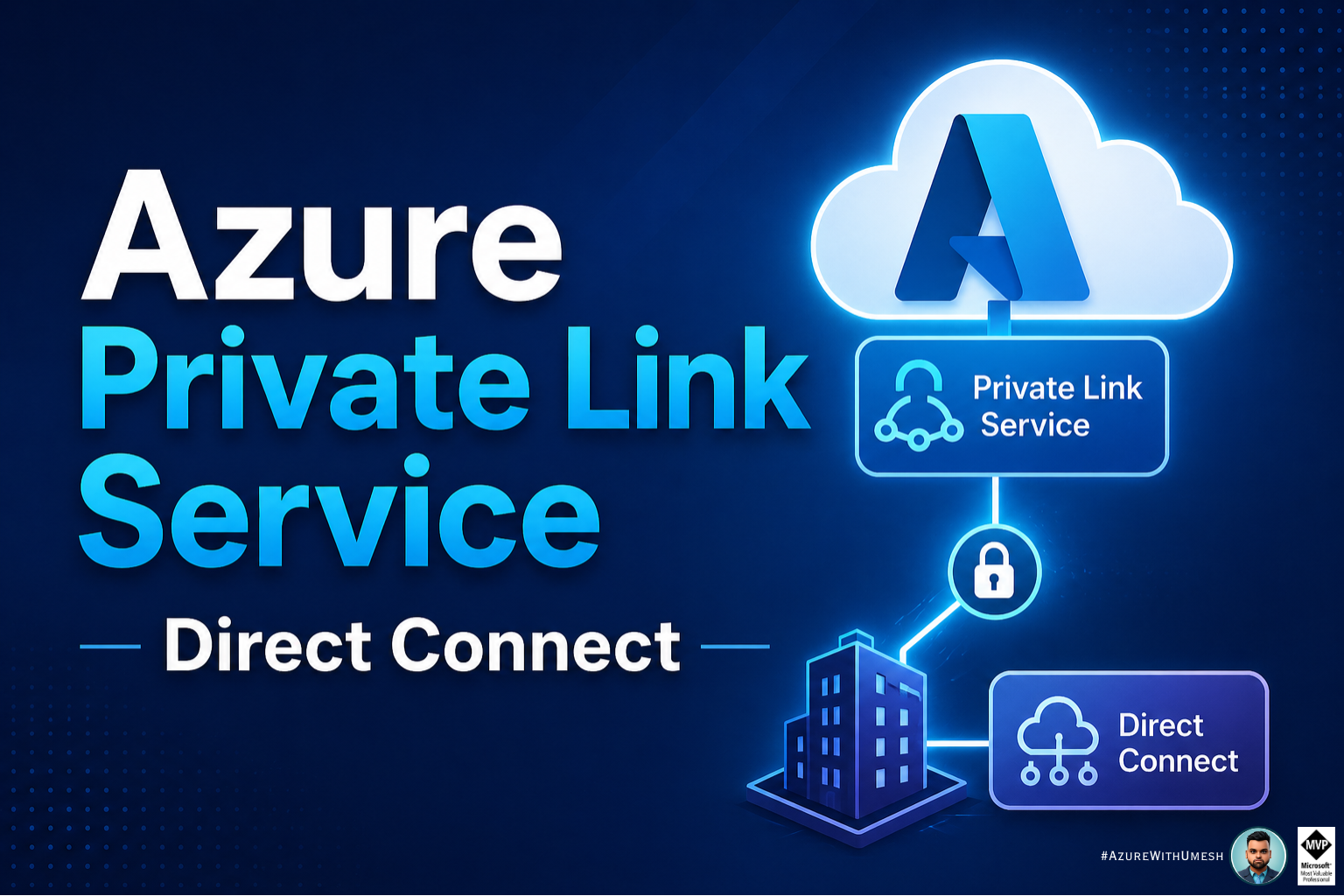
Enter Private Link Service Direct Connect – currently in public preview – which removes the load balancer from the equation entirely and lets you route Private Link traffic straight to any privately routable destination IP address within your virtual network.
What Is Private Link Service Direct Connect?
Private Link Service (PLS) Direct Connect is an extension to the existing Azure Private Link Service capability. Where the classic service required a Standard Load Balancer to mediate traffic, Direct Connect allows you to specify a static destination IP address inside your VNet – and the Private Link fabric will route consumer traffic directly to it.
At its simplest: a consumer creates a Private Endpoint in their VNet, that PE connects to your Private Link Service, and your PLS Direct Connect forwards the traffic to the IP you specified – bypassing any load balancer entirely.
This sounds simple, but the networking implications are significant. Let’s examine the architecture before going deeper.
How It Works – Under the Hood
To understand what changes with Direct Connect, it’s worth revisiting how the classic Private Link Service routes packets:
Classic Private Link Service Flow

Direct Connect Flow

The key mechanic under the hood is that the Private Link Service performs Source NAT (SNAT) on the consumer’s traffic using NAT IP addresses allocated from the provider’s subnet – the same as in the classic model. However, instead of forwarding the post-SNAT traffic to a Load Balancer frontend, the platform routes it directly to the destination IP address you configure during PLS creation.
This means the destination could be any privately routable IP: a VM NIC, an NVA, an internal Azure resource, or – critically – an IP that resolves to an ExpressRoute or VPN-connected on-premises endpoint.
Classic PLS vs. Direct Connect -Side by Side

Use Cases – Where Direct Connect Shines
The removal of the load balancer dependency unlocks a number of scenarios that were previously awkward or impossible with the classic Private Link Service model.

Real-World Pattern
A common pattern involves a managed service provider who has customer environments connected via ExpressRoute. With PLS Direct Connect, the MSP can expose specific internal services to each customer as a Private Endpoint without deploying load balancers in every customer-facing VNet.
Key Requirements Before You Start
Before deploying PLS Direct Connect, ensure your environment meets these mandatory prerequisites:
1. Register the Feature Flag
Enable Microsoft.Network/AllowPrivateLinkserviceUDR on your Azure subscription via Azure CLI or PowerShell preview feature registration. This is required before any resources can be created.
2. Minimum 2 IP Configurations
Unlike classic PLS, Direct Connect requires at least 2 IP configurations (in multiples of 2, up to a maximum of 8) for high availability. This is not optional.
The target IP must be a statically allocated, privately routable address. Dynamic/DHCP-assigned IPs are not supported as destinations. The IP must be reachable within your VNet (including through ExpressRoute or VPN).
4. Disable privateLinkServiceNetworkPolicies on Subnet
The subnet hosting the PLS NAT IPs must have the privateLinkServiceNetworkPolicies property set to Disabled. This is the same as classic PLS.
5. IP Forwarding Must Be Allowed
If your subscription has an Azure Policy that disables IP forwarding, that policy must be exempted or disabled for the relevant resources, as PLS Direct Connect requires IP forwarding to be enabled.
Limitations – Know These Before You Commit
10Max PLS per region per subscription
10 GbpsMax bandwidth per PLS
2–8 IP config count (multiples of 2)
1 Region PE, PLS & VM must be co-located (preview)
- No Private Endpoint as destination: You cannot point a PLS Direct Connect at a Private Endpoint IP. This would create a circular dependency in the Private Link fabric.
- No migration from classic PLS: If you have an existing Private Link Service backed by a Load Balancer, you cannot migrate it to Direct Connect. You must create a new resource.
- Cross-region restriction in preview: During public preview, the source Private Endpoint, the PLS, and the consumer VM must all reside in the same Azure region. Microsoft has indicated this restriction will be lifted at GA.
- No dynamic destination IPs: The destination IP must be statically assigned. DHCP-allocated addresses aren’t supported as targets.
- Portal support is limited: Full Azure Portal support requires using a preview link (
aka.ms/PortalPLSDirectConnect). Standard portal navigation does not yet expose the feature fully. - IP forwarding policy: Subscription-level Azure Policies that block IP forwarding will interfere with this feature and must be addressed before deployment.
Step-by-Step: Getting PLS Direct Connect Running
1. Register the Preview Feature Flag
Register Microsoft.Network/AllowPrivateLinkserviceUDR on your subscription. Registration can take a few minutes to propagate.
2. Create or Identify a VNet with a Suitable Subnet
You need a subnet for the PLS NAT IP addresses. Ensure privateLinkServiceNetworkPolicies is Disabled on this subnet.
3. Identify Your Static Destination IP
Determine the privately routable static IP you want to target. This could be a VM NIC, NVA IP, or an on-premises address reachable via ExpressRoute/VPN.
4. Create the Private Link Service with DestinationIPAddress
Use PowerShell, Azure CLI, or Terraform to create the PLS, specifying the DestinationIPAddress parameter and at least 2 IP configurations.
5. Create a Private Endpoint (Consumer Side)
The consumer creates a Private Endpoint pointing to your PLS resource ID. Once approved, they receive a private IP in their VNet that maps through to your destination.
6. Verify and Test Connectivity
From the consumer’s VNet, test connectivity to the Private Endpoint’s IP. Traffic should traverse the Private Link fabric and arrive at your configured destination IP.
Regional Availability (Public Preview)
During the public preview phase, PLS Direct Connect is available only in the following Azure regions. Ensure your VNet, PLS, and Private Endpoint are all in one of these regions.
- North Central US
- East US 2
- Central US
- South Central US
- West US
- West US 2
- West US 3
- Southeast Asia
- Australia East
- Spain Central
westus. If you are testing in a different region, verify it’s on the supported list above before registering the feature flag and creating resources.Considerations, Gotchas & Design Guidance
High Availability Is Mandatory by Design
The requirement for a minimum of 2 IP configurations (in multiples of 2) is not arbitrary. It enforces high availability at the NAT layer. For production workloads, consider deploying 4 IP configurations to give yourself additional headroom. The hard limit of 8 means plan accordingly.
The 10-PLS-per-Subscription Ceiling
This is a hardware limit, not a soft quota that can be raised via support tickets. For large enterprise deployments with many services needing private connectivity, this is the most significant architectural constraint today. Design your service topology with this in mind – consolidating destinations behind a single PLS where possible (e.g., routing to an NVA that distributes to multiple backends).
SNAT and Return Traffic
As with classic PLS, the fabric performs Source NAT on consumer traffic before delivering it to the destination IP. The destination IP sees traffic sourced from one of the PLS NAT IPs, not the consumer’s original IP. Return traffic is handled transparently by the fabric. If your destination service needs to know the original consumer IP, you’ll need to implement an application-layer mechanism (e.g., X-Forwarded-For, proxy protocol).
Azure Policy and IP Forwarding
If your organization has a blanket Azure Policy that denies IP forwarding (a common security hardening measure), you must create a policy exemption for the resources involved in PLS Direct Connect. Failing to do so will result in silent connectivity failures that can be difficult to diagnose.
No Migration Path – Plan New Deployments Carefully
You cannot upgrade or migrate an existing PLS (backed by a Load Balancer) to the Direct Connect model. These are distinct resource types. If you’re planning to adopt Direct Connect, do so from greenfield. Organizations mid-flight in a PLS deployment should evaluate whether to continue with the classic model or start fresh with Direct Connect.
Portal Access in Preview
The Azure Portal does not fully surface PLS Direct Connect through its normal navigation. To access it via the Portal, use the preview link aka.ms/PortalPLSDirectConnect, which activates the relevant blade. Full portal support without the preview link is pending, so CLI/PowerShell/Terraform are the recommended deployment paths for now.
Summary – What This Feature Means for You
Private Link Service Direct Connect is a meaningful evolution of Azure’s private connectivity story. It removes the most significant friction point in the classic PLS model – the mandatory Standard Load Balancer – and replaces it with a direct, IP-targeted routing capability.
For most teams, the key takeaway is this: if your private connectivity scenario involves a destination that doesn’t fit cleanly behind an Azure LB – whether it’s an on-premises endpoint, a network appliance, a database with a static IP requirement, or a legacy application – PLS Direct Connect is worth evaluating today.
The public preview limitations (10 PLS per subscription, regional availability, no cross-region, no migration) are real constraints that require careful architectural planning. But the direction is clear: Microsoft is building toward a more flexible, load-balancer-optional private connectivity layer in Azure.
Quick Reference: Must-Remember Facts